AI Virtual Staging For Real Estate: What It Can And Cannot Do
What AI virtual staging for real estate does well, where a listing photo must stay truthful, how to disclose it, and what each staged image costs in credits.
 RoomMaker AI Team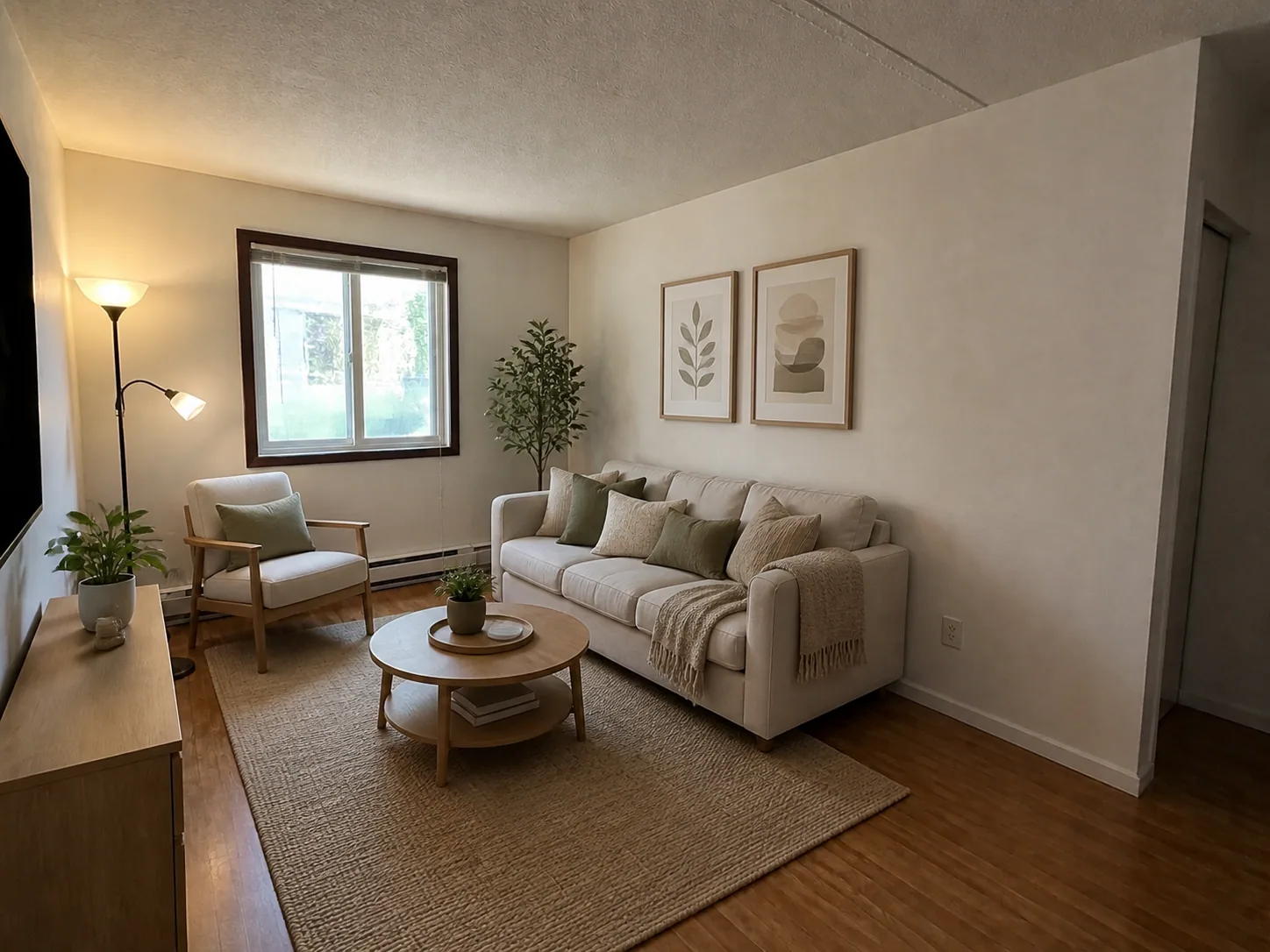
An empty room is hard to read in a photo. Without furniture, people struggle to judge how big the room is or what it could be used for.
Virtual staging for real estate solves that narrow problem. It adds furniture to a photo so a buyer or renter can see how the room might work. Virtual staging AI makes this fast, and the same speed makes it easy to go too far. This article covers what the technique does well, where it has to stop, and a simple workflow for a set of listing photos.
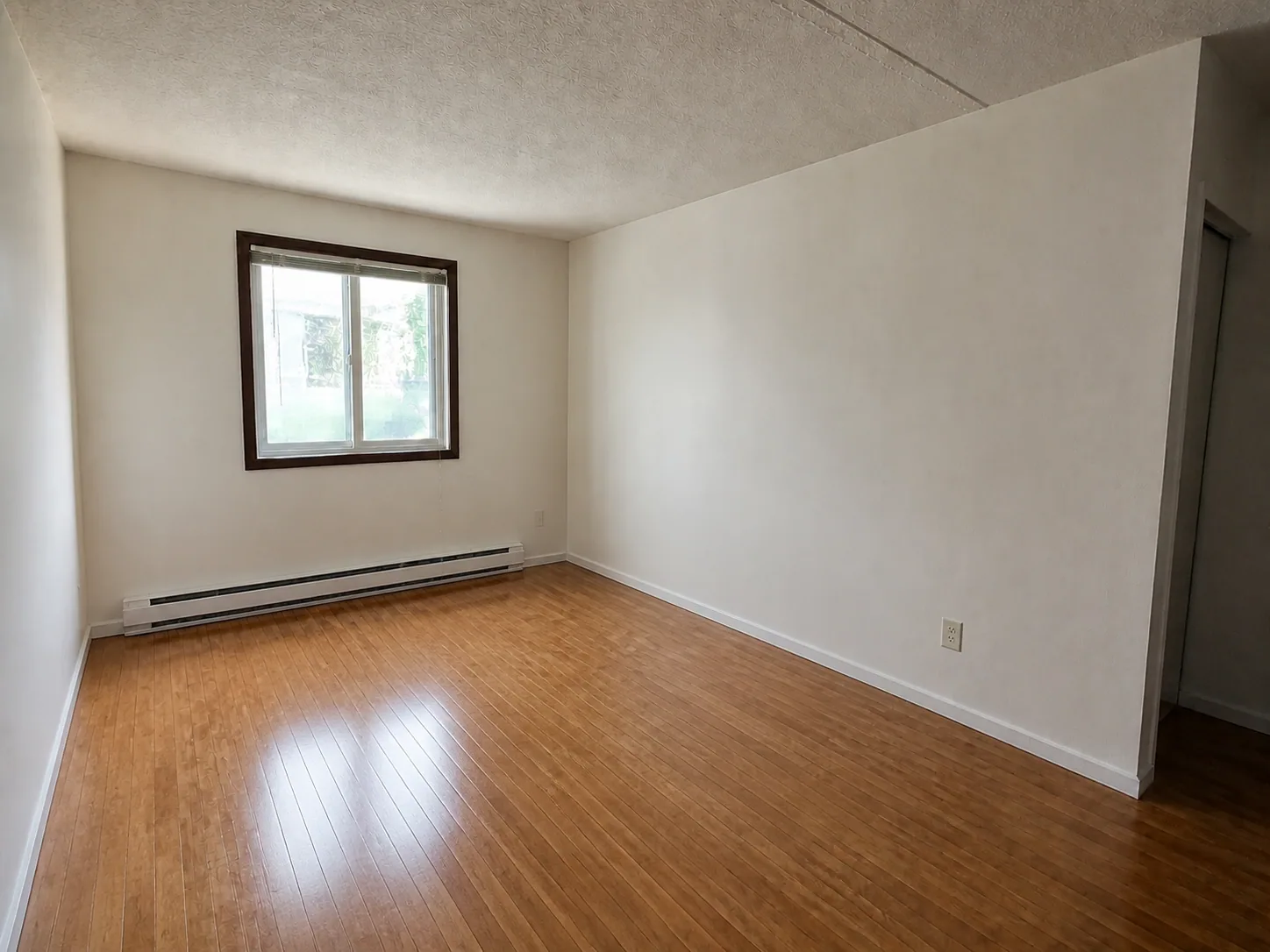 BeforeVirtually staged
What virtual staging AI does well
Staging is useful when it answers a question the empty photo cannot:
- Function. It shows that the alcove takes a desk, or that the second bedroom fits a double bed.
- Scale. A sofa or a bed gives the eye something familiar to measure the room against.
- Consistency. Every room in the listing can share one calm style instead of a mix of leftover furniture.
- Alternatives. The same spare room can be shown as a bedroom and as a home office.
With the AI virtual staging tool, you upload the photo, choose the room type, and pick a staging style such as Warm Contemporary, Modern Neutral, or Scandinavian. You also say what the image is for: a home sale, a long-term rental, or a short-term rental. That choice matters, because a family home and a holiday let are furnished differently.
Staging does not repair a weak photo. If the picture is dark, tilted, or blurred, fix or retake it first.
Empty rooms versus occupied rooms
Empty rooms are the simple case. The whole floor is visible, nothing has to be removed, and the AI only adds. A level photo taken from a corner in daylight gives the most believable result.
Vacant rooms are often not clean. Moving boxes, cables, paint tins, and old wall hooks pull attention away from the room. Remove them before staging. The empty room cleanup tool for listing photos clears small distractions without adding furniture, and keeps the walls, floor, and windows as they are.
Occupied rooms are harder. The current furniture hides parts of the floor and walls, so anything placed over it involves more guessing. You have three options:
- If the furniture is acceptable, do not stage. Correct the photo instead. AI real estate photo editing fixes exposure, colour cast, and leaning verticals without changing what is in the room.
- If the room is furnished but messy, declutter it and leave the furniture.
- If the furniture has to go, remove it first and stage second. Then check the areas that were hidden, because the AI had to fill them in.
Keep the room truthful
A simple rule covers most cases: staging may add things a buyer could bring with them, and must not change the thing they are buying.
Fine to add:
- Furniture, rugs, and lamps
- Plants, artwork, and bedding
Not fine in a photo presented as the property today:
- Moving, enlarging, or adding windows and doors
- Changing the flooring, the wall finish, or kitchen and bathroom fittings
- Removing radiators, pillars, cracks, stains, or other permanent features
- Changing the view through the window
- Using undersized furniture so the room looks larger than it is
After each render, compare it with the original. Count the windows. Check that the heater, sockets, and floor are still there. Look at the furniture scale against the door or the window.
If you want to show renovation potential, such as a new wall colour or new flooring, treat that as a separate concept image. Label it as a concept and keep it apart from the photos of the property as it stands.
Disclosure: say that the photo is staged
This section is general information, not legal advice. Rules on edited listing photos differ between countries, states, listing services, and portals, and they change.
Even so, the common expectations are consistent:
- Label staged images clearly, for example "virtually staged", in the caption or on the image.
- Where you can, include the unstaged photo of the same room in the listing.
- Never use editing to hide a defect.
- Check the rules of your listing service, brokerage, and portal before you publish, and ask your broker or a lawyer when you are unsure.
Clear labelling also protects you. A viewer who walks into an empty flat after seeing a furnished photo with no label starts the visit feeling misled.
A simple listing-photo workflow
The order matters, because each step builds on the one before.
- Shoot. Take level photos in daylight from the corners of each room, plus the exterior.
- Clean up. Remove small distractions from vacant rooms. For furnished rooms, correct exposure and colour instead.
- Stage. Stage the rooms that decide the listing, usually the living room and the main bedroom, plus one flexible room. Kitchens and bathrooms rarely need it.
- Finish the exterior. Day to dusk photo editing turns a daytime exterior into a twilight image with lit windows, and a sky replacement swaps a grey sky for a clear one. The building, driveway, and planting should stay exactly as they are.
- Review and label. Compare every edited image with its original, label the staged ones, and keep the originals on file.
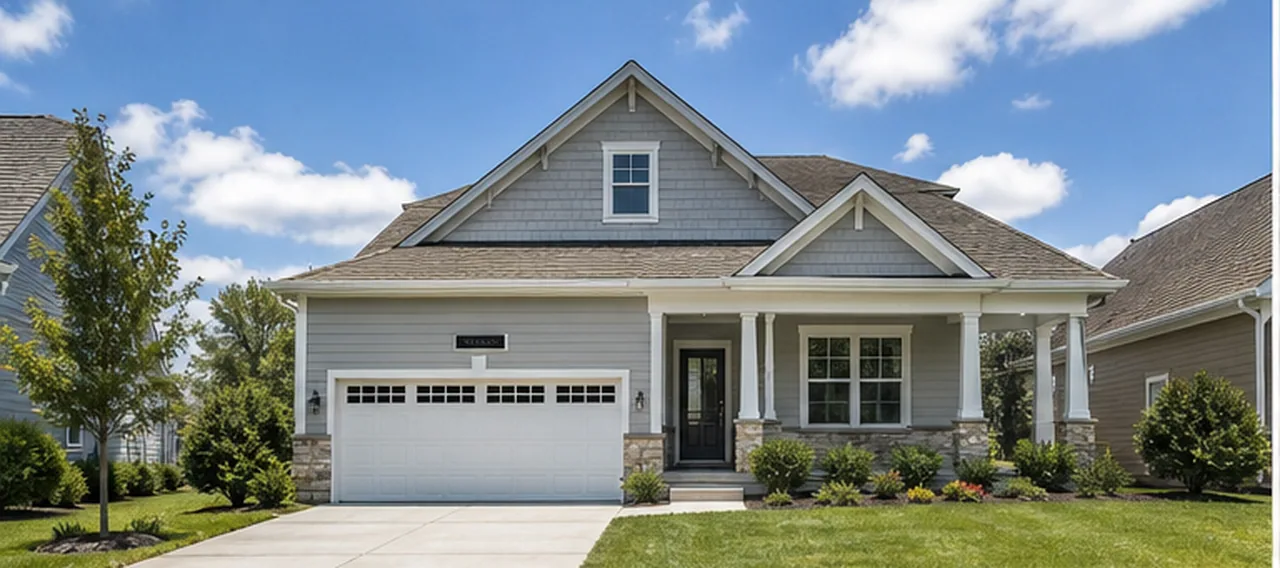 Daytime
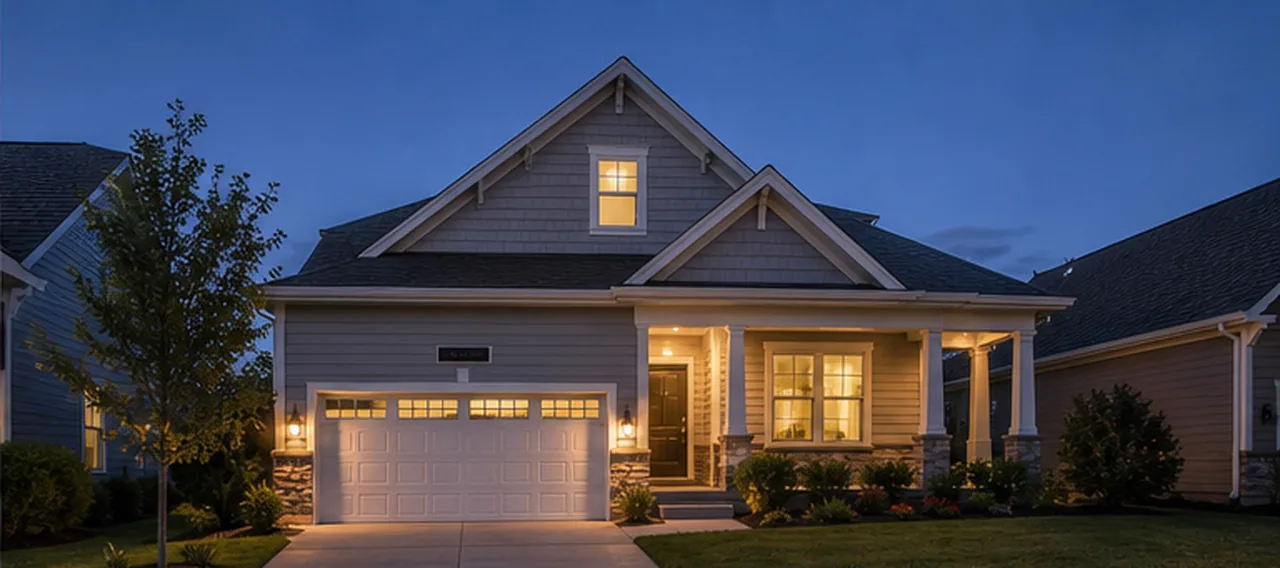 Dusk
DuskWhat virtual staging costs per image
RoomMaker AI charges per render in credits, and the price depends on the output quality:
- Basic: 6 credits per render
- Pro 2K: 18 credits per render
- Ultra 4K: 30 credits per render
The first Basic preview is watermarked, and paid credits unlock watermark-free downloads. If a generation fails, its credits are returned.
For a rough budget, multiply the number of photos by the quality you need. Five photos at Pro 2K come to 90 credits if each one works the first time, so leave room for a few regenerations. Basic is enough to check whether a staging direction suits the room. Use a higher quality for the images you will publish or print. Current plans and credit packs are listed on the pricing page.
A staged photo has one job: to help someone picture the room correctly. If the real room would surprise them at the viewing, the edit went too far.
